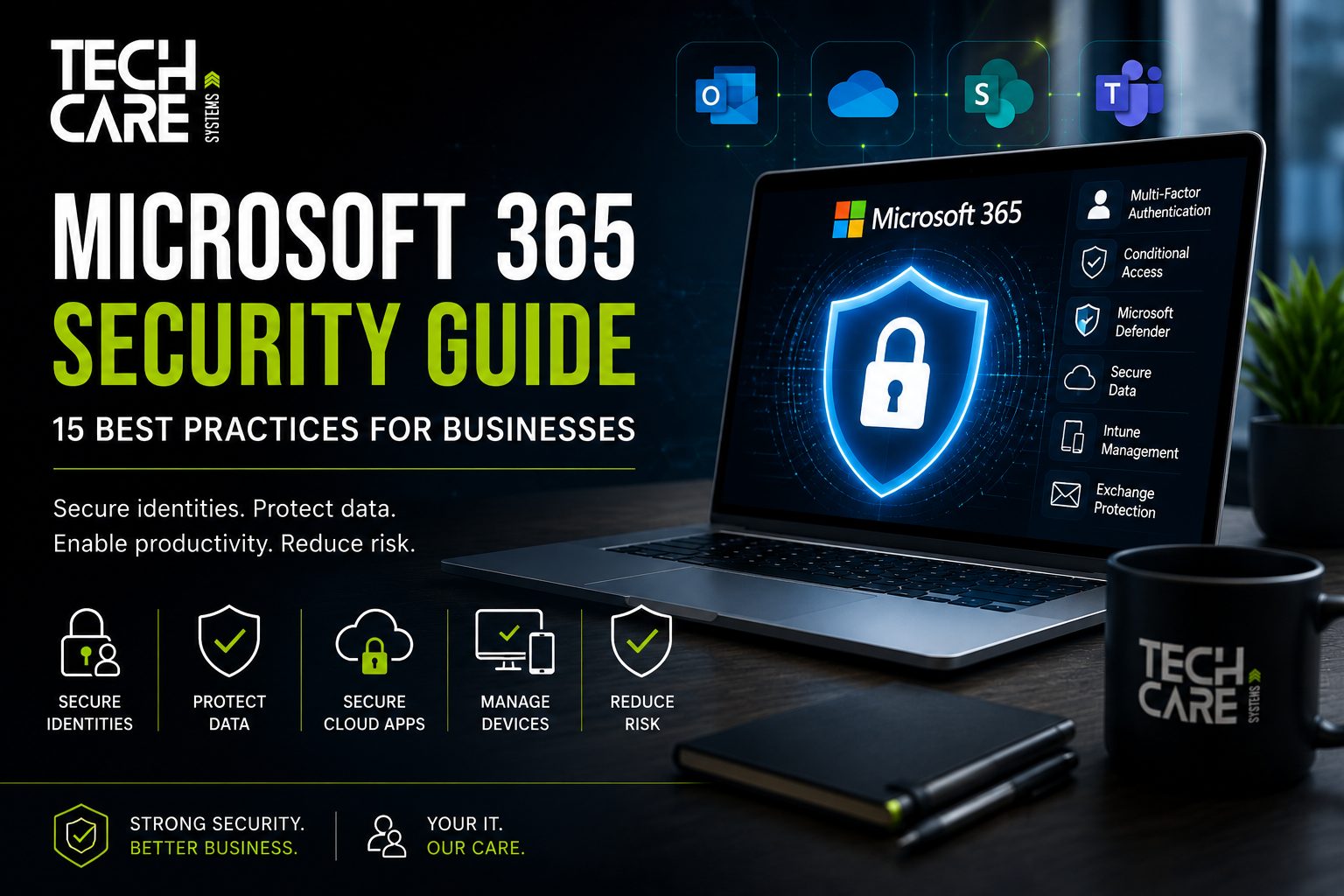
Microsoft 365 Security Guide: 15 Best Practices Every Business Should Follow in 2026

Most businesses believe moving to Microsoft 365 automatically makes them secure.
Unfortunately, that isn’t true.
Microsoft provides one of the world’s most secure cloud platforms, but security is based on a shared responsibility model. Microsoft secures the infrastructure, while your organization is responsible for protecting identities, devices, data, permissions, and configurations.
Without proper configuration, a Microsoft 365 tenant can become an easy target for phishing attacks, ransomware, account compromise, and data breaches.
At TechCare Systems, we regularly help businesses optimize and secure Microsoft 365 environments to reduce cyber risk while improving productivity.
This guide explains the most important security measures every business should implement.
Why Microsoft 365 Security Matters
Microsoft 365 is far more than Outlook and Word.
It often contains:
- Company email
- Customer information
- Financial documents
- HR files
- OneDrive data
- SharePoint sites
- Teams conversations
- Company passwords
- Business applications
If one administrator account is compromised, attackers may gain access to almost your entire organization.
1. Enable Multi-Factor Authentication (MFA)
Passwords are no longer enough.
Even complex passwords can be stolen through phishing or malware.
Multi-Factor Authentication adds another verification step such as:
- Microsoft Authenticator
- Security Key (FIDO2)
- Windows Hello for Business
- Fingerprint
- Face Recognition
Microsoft reports that MFA blocks the overwhelming majority of password-based attacks.
2. Disable Legacy Authentication
Many older protocols such as:
- POP3
- IMAP
- SMTP Authentication
- Basic Authentication
do not support modern security controls.
Attackers frequently target these protocols because they bypass MFA.
If your business no longer needs them, disable them.
3. Configure Conditional Access
Conditional Access allows you to define rules such as:
✅ Only allow company devices
✅ Block risky countries
✅ Require MFA outside Germany
✅ Require compliant devices
✅ Block anonymous VPNs
This is one of the most powerful Microsoft security features.
4. Secure Administrator Accounts
Administrator accounts should never be used for daily work.
Best practices include:
- Separate admin accounts
- MFA enabled
- Strong passwords
- No email usage
- Just-In-Time Administration
- Least Privilege Access
5. Microsoft Secure Score
Microsoft Secure Score evaluates your tenant security.
It provides recommendations such as:
- Enable MFA
- Reduce Global Admins
- Configure Conditional Access
- Enable Defender
- Review Sharing Policies
Review Secure Score monthly.
6. Microsoft Defender for Business
Modern Endpoint Protection includes:
- Antivirus
- EDR
- Ransomware detection
- Behavioral monitoring
- Threat Intelligence
- Device Isolation
It provides significantly better protection than traditional antivirus software.
7. Protect Exchange Online
Business email remains the number one attack vector.
Exchange Online should include:
- Anti-Spam
- Anti-Malware
- Anti-Phishing
- Safe Links
- Safe Attachments
8. Protect SharePoint & OneDrive
Many businesses accidentally expose confidential information.
Review:
- External sharing
- Anonymous links
- Guest access
- File permissions
Sensitive company information should only be accessible to authorized users.
9. Use Microsoft Intune
Intune helps manage:
- Windows devices
- Mobile phones
- Tablets
- Company laptops
It allows administrators to:
- Deploy applications
- Enforce encryption
- Configure security policies
- Wipe lost devices
- Monitor compliance
10. Encrypt Every Device
Every company laptop should use:
- BitLocker
- TPM
- Secure Boot
If a laptop is stolen, the data remains protected.
11. Monitor Sign-ins
Microsoft Entra ID provides detailed sign-in logs.
Watch for:
- Impossible travel
- Multiple failed logins
- New locations
- Anonymous IPs
- High-risk users
12. Backup Microsoft 365
One of the biggest misconceptions:
Microsoft does NOT provide a traditional backup service for your organization.
Businesses should maintain independent backups for:
- Exchange Online
- SharePoint
- Teams
- OneDrive
13. Train Employees
Technology alone cannot stop phishing.
Employees should know how to:
- Recognize fake login pages
- Report suspicious emails
- Verify payment requests
- Avoid malicious attachments
14. Perform Regular Security Reviews
Every quarter review:
- Administrator accounts
- Guest accounts
- Conditional Access
- Device compliance
- Sharing permissions
15. Develop an Incident Response Plan
Know exactly:
- Who to contact
- How to isolate devices
- How to restore backups
- How to notify affected users
- How to recover business operations
Preparation dramatically reduces recovery time.
Microsoft 365 Security Checklist
✔ MFA enabled
✔ Legacy Authentication disabled
✔ Conditional Access configured
✔ Defender enabled
✔ Intune deployed
✔ BitLocker enabled
✔ Exchange Protection configured
✔ Backup solution implemented
✔ Secure Score reviewed
✔ Admin accounts separated
✔ User awareness training completed
Frequently Asked Questions
Is Microsoft 365 automatically secure?
Microsoft provides a secure platform, but organizations are responsible for configuring and managing many security controls.
Do I still need backups?
Yes. Independent backups help protect against accidental deletion, ransomware, and long-term data recovery needs.
Is Microsoft Defender enough?
For many small and medium-sized businesses, Microsoft Defender for Business provides a strong foundation. Organizations with higher risk profiles may require additional security controls depending on their environment.
How often should I review my Microsoft 365 security?
A quarterly review is a good baseline, with more frequent monitoring of alerts and sign-in activity.
How TechCare Systems Can Help
We help businesses design, secure, and manage Microsoft 365 environments with services including:
- Microsoft 365 tenant deployment
- Security assessments
- Conditional Access implementation
- Microsoft Intune configuration
- Exchange Online migration
- SharePoint administration
- Microsoft Defender deployment
- Backup and disaster recovery
- User security awareness
- Ongoing managed support
Whether you are migrating to Microsoft 365 or strengthening an existing environment, TechCare Systems can help you build a secure, scalable, and resilient workplace.
Related Articles
As your content library grows, link this article to:
- Cybersecurity for Small Businesses
- Backup & Disaster Recovery
- Microsoft Intune Complete Guide
- How Multi-Factor Authentication Works
- Business Email Security
- Managed IT Services Explained
- Network Security Best Practices
References
- Microsoft Learn – Security Documentation: https://learn.microsoft.com/security
- Microsoft Learn – Microsoft Entra ID: https://learn.microsoft.com/entra
- Microsoft Learn – Microsoft Defender: https://learn.microsoft.com/defender
- Microsoft Learn – Microsoft Intune: https://learn.microsoft.com/mem/intune/
- CISA – Cybersecurity Guidance: https://www.cisa.gov/resources-tools
- NIST Cybersecurity Framework: https://www.nist.gov/cyberframework